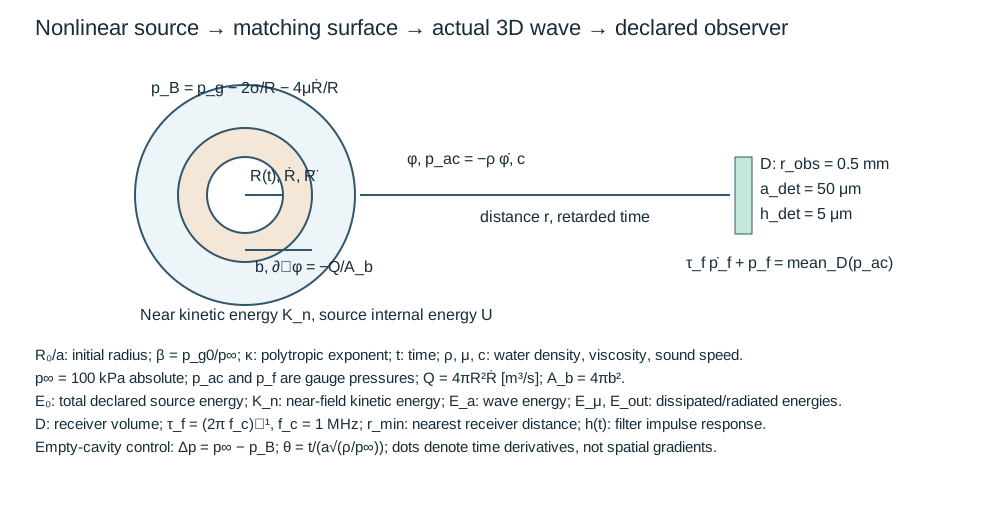
Start from zero: benchmarks, then a 3D gas/wave model
从零开始:基准,再到三维气体/波模型
COMSOL 6.4 desktop instructions. Each numbered card tells you where to click, what to enter, and how to check it. Complete one card before moving down. English menu labels are retained beside the Chinese explanation.
本教程使用 COMSOL 6.4 桌面界面。每张编号卡明确点击位置、输入内容和核对办法;做完一张再向下。英文菜单名称与中文解释并列保留。
A · Learn the three working areas
A · 认识三个工作区
Keep this lesson next to COMSOL. Start with P0; do not start by loading the delivered final MPH. The files you create here are your practice models. A successful benchmark gives you a small, inspectable first result.
将本课与 COMSOL 并排打开。先做 P0,不从交付的最终 MPH 开始加载。本课新建的是自己的练习模型;成功的基准能给你一个小而可检查的首个结果。
模型开发器
Left: click the node
左侧:选中节点
设置
Middle: enter its fields
中间:填写该节点字段
图形
Right: check geometry/plots
右侧:查看几何/曲线
This is a labelled interface schematic, not a screenshot. Results tables, Progress, Messages and Log usually appear at the bottom. A right-click opens the available child nodes for the node under the pointer.
这是带标注的界面示意图,不是软件截图。结果表、Progress、Messages、Log 通常位于下方。右击某个节点会打开该节点可添加的子节点。
01 Recognize a path in these instructions
认识教程中的路径
For Global Definitions → Parameters 1, click the small triangle beside Global Definitions, then click Parameters 1. For right-click Definitions → Selections → Box, right-click Definitions, open Selections in its context menu, and choose Box. Click the Settings panel after typing to commit a cell.
例如 Global Definitions → Parameters 1:点击全局定义旁的小三角展开,再点击参数 1。例如 右击 Definitions → Selections → Box:先右击定义节点,在菜单中打开 Selections,再选 Box。输入后点击设置面板以提交单元格。
You should see: You can identify Model Builder, Settings and Graphics before entering equations.
应当看到:输入方程前能够辨认模型开发器、设置、图形三个区域。
B · P0: your first solved COMSOL model
B · P0:第一个亲手求解的模型
02 Open a new model
打开一个新模型
Launch COMSOL Multiphysics 6.4 from the Windows Start menu. On the New page click Model Wizard. If a model is already open, use File → New → Model Wizard and keep your existing work saved in its own file.
从 Windows 开始菜单启动 COMSOL Multiphysics 6.4,在 New 页面点击 Model Wizard(模型向导)。若已有模型打开,用 File → New → Model Wizard;先将已有工作保存在自己的文件中。
You should see: The Select Space Dimension page is visible.
应当看到:看到 Select Space Dimension(选择空间维度)页面。
03 Choose 0D
选择 0D
On Select Space Dimension, click 0D.
在 Select Space Dimension 页面点击 0D。
You should see: The Select Physics page opens.
应当看到:打开 Select Physics(选择物理场)页面。
Why this choice: The first benchmark has a radius and speed but no spatial mesh. 0D still solves time-dependent equations.
为何这样设置:第一个基准只需要半径、速度,没有空间网格;0D 仍然可以求解随时间变化的方程。
04 Add Global ODEs and DAEs
添加 Global ODEs and DAEs
In Select Physics, expand Mathematics → ODE and DAE Interfaces → Global ODEs and DAEs, select the final interface, and click Add. You can also type the final interface name in the search field and select the matching interface. Adding one interface does not automatically add the next one.
在 Select Physics 中展开 Mathematics → ODE and DAE Interfaces → Global ODEs and DAEs,选中最后的接口并点击 Add(添加)。也可在搜索框输入最后的接口名称,选中对应结果。添加一个接口不会自动添加下一个。
You should see: The interface appears in Added physics interfaces.
应当看到:该接口出现在 Added physics interfaces(已添加物理场接口)列表。
If this does not work / 如果这一步不成功
If the interface is missing, clear the search filter and confirm the dimension. For Hyperelastic Material, verify a licensed nonlinear structural product is available.
若接口缺失,清空搜索过滤并检查空间维度。Hyperelastic Material 还需要相应的非线性结构许可。
05 Choose the study type
选择研究类型
Click Study. Under General Studies, select Time Dependent, then click Done.
点击 Study(研究),在 General Studies(一般研究) 中选 Time Dependent,再点击 Done(完成)。
You should see: Model Builder contains a Component and Study 1 → Time Dependent.
应当看到:Model Builder(模型开发器)中出现 Component 与 Study 1 → Time Dependent。
06 Name the component scope
设置组件作用域名称
Click Component 1. At the top of Settings set Name to c and Label to c: practice rebuild. Keep the SI unit system. Name defines the expression prefix; Label only changes the visible tree caption.
点击 Component 1(组件 1)。设置顶部 Name 为 c,Label 为 c: practice rebuild,单位制保持 SI。Name 决定表达式前缀;Label 只改变树上显示文字。
You should see: Expressions from this component can be addressed as c.variable.
应当看到:该组件表达式可以用 c.variable 访问。
If this does not work / 如果这一步不成功
If your component is still comp1, either correct Name now or consistently replace every component prefix in result expressions. This walkthrough uses the given Name.
若组件仍叫 comp1,应现在改 Name;否则必须一致替换结果中的全部组件前缀。本教程使用所给 Name。
07 Save a checkpoint
保存检查点
Choose File → Save As. Save as P0_my_rebuild.mph in your own practice folder. For subsequent cards use Ctrl+S. Keep the accepted delivered models as reference files.
选择 File → Save As(另存为),在自己的练习文件夹保存为 P0_my_rebuild.mph。后续操作用 Ctrl+S 保存。保留已经交付的模型作为参考。
You should see: The title bar shows your new practice filename.
应当看到:标题栏显示新的练习文件名。
08 Enter the parameters
输入参数
In the left Model Builder, expand Global Definitions, then click Parameters 1. In Settings, type each Name and Expression into a row. Press Tab to move to the next cell. For the long table, click Load from File below the table, choose GUI_P0_parameters_import.txt after saving it locally, and click Open. Use this headerless file rather than a TSV with column headings. Import once; when adding a component, append only the new names and keep earlier parameters.
在左侧模型开发器展开 Global Definitions(全局定义),点击 Parameters 1(参数 1)。在设置表中逐行输入 Name 与 Expression,按 Tab 切换单元格。长表可先将链接文件保存到本机,点击表格下方 Load from File(从文件加载),选择 GUI_P0_parameters_import.txt,然后 Open。使用无表头文件,只导入一次;添加组件时只追加新名称,保留此前参数。
You should see: All 4 entries listed here are present. The Value column evaluates expressions in SI units when their dependencies have been created.
应当看到:此处列出的 4 项均在表中。依赖项建立后,Value 列会显示 SI 制计算值。
Why this choice: Parameters are prescribed inputs. The solver will calculate dependent variables separately.
为何这样设置:参数是指定输入;待求的未知变量由求解器另行计算。
If this does not work / 如果这一步不成功
A red Name often means a duplicate. Remove the duplicate row rather than changing the expression name. A temporarily unresolved function call becomes valid after its function is added in the next cards.
Name 变红通常表示重名,应删除重复行,保留本教程的名称。尚未创建的函数会暂时无法求值,后续创建后即可恢复。
| Name / 名称 | Expression / 表达式 | Meaning / 含义 |
|---|---|---|
| Rmax | 50[um] | Initial maximum radius / 初始最大半径 |
| rho | 1000[kg/m^3] | Liquid density / 液体密度 |
| DP | 80[kPa] | Benchmark pressure difference / 基准压差 |
| tau | Rmax*sqrt(rho/DP) | Radius/inertial time scale / 惯性时间尺度 |
09 Enter the two P0 equation rows
输入两行 P0 方程
Click Component c → Global ODEs and DAEs → Global Equations 1. Delete the default placeholder row using the table Delete button. Enter the rows below. The selected row can be edited in the Name, f, u_0 and ut_0 fields below the table.
点击 Component c → Global ODEs and DAEs → Global Equations 1,用表格下方 Delete 删除默认占位行。输入下面两行;选中行后也可在表格下方的 Name、f、u_0、ut_0 字段编辑。
| Field / 字段 | Select or enter exactly / 精确选择或输入 |
|---|---|
| Dependent variable quantity | Dimensionless (1) |
| Source term quantity | Dimensionless (1) |
You should see: The only unknowns are xr and vr. Both derivative-initial-value entries are zero.
应当看到:未知量仅有 xr 与 vr;两行初始导数均为零。
Why this choice: xr = R/Rmax; vr = τṘ/Rmax. xrt is the derivative of xr, not xr multiplied by t. The initial vr is zero, but its solved derivative is nonzero because the pressure starts collapse.
为何这样设置:xr = R/Rmax,vr = τṘ/Rmax。xrt 是 xr 的导数,不是 xr 乘 t。vr 初值为零,但压差使其求解导数不为零。
| Name | f(u,ut,utt,t) | Initial value (u_0) | Initial value (ut_0) |
|---|---|---|---|
| xr | tau*xrt-vr | 1 | 0 |
| vr | tau*vrt-(-1-1.5*vr^2)/xr | 0 | 0 |
10 Enter the output time list
输入输出时间列表
Click Study 1 → Step 1: Time Dependent. Keep Time unit = s. Replace Output times with the full expression below; copy the whole line including the final three times.
点击 Study 1 → Step 1: Time Dependent。Time unit 保持 s。用下列整行替换 Output times,包括末尾三个指定时间。
| Field / 字段 | Select or enter exactly / 精确选择或输入 |
|---|---|
| Output times | range(0,0.9*tau/800,0.9*tau) 0.9059017996683709*tau 0.9131318109030571*tau 0.9144074874389471*tau |
You should see: The last output time is 0.9144074874389471*tau, before the singular R=0 endpoint.
应当看到:最后输出时间为 0.9144074874389471*tau,位于 R=0 奇异终点之前。
Why this choice: Those three times correspond to R/Rmax approximately 0.2, 0.1 and 0.05. The benchmark stops before zero radius.
为何这样设置:末尾三个时间分别约对应 R/Rmax = 0.2、0.1、0.05;基准在零半径之前停止。
11 Reveal and set the P0 time solver
显示并设置 P0 时间求解器
Right-click Study 1 → Show Default Solver. Expand Solver Configurations → Solution 1. Click Time-Dependent Solver 1. If General fields are inherited, set Defined by study step = User defined. Keep the same output list, and enter the settings below in General, Absolute Tolerance and Time Stepping.
右击 Study 1 → Show Default Solver,展开 Solver Configurations → Solution 1,点击 Time-Dependent Solver 1。若 General 从研究继承,选 User defined。保持同一输出时间列表,在 General、Absolute Tolerance、Time Stepping 填以下设置。
| Field / 字段 | Select or enter exactly / 精确选择或输入 |
|---|---|
| Relative tolerance | 1e-10 |
| Absolute Tolerance → Global method | Unscaled |
| Absolute Tolerance → Tolerance method | Manual |
| Absolute tolerance | 1e-12 |
| Time Stepping → Method | BDF |
| Steps taken by solver | Strict |
You should see: BDF, Strict, relative 1e-10 and unscaled absolute 1e-12 are visible.
应当看到:看到 BDF、Strict、相对容差 1e-10、未缩放绝对容差 1e-12。
12 Compute P0
求解 P0
Press Ctrl+S, then click Compute in the Study toolbar (or right-click Study 1 → Compute). Watch Progress and Messages until the run finishes.
按 Ctrl+S 保存,再点击 Study 工具栏的 Compute(计算),或右击 Study 1 → Compute。观察 Progress 与 Messages,等待计算结束。
You should see: The solver finishes without an error and Results contains a Solution dataset.
应当看到:求解器无错误结束,Results 中有 Solution 数据集。
If this does not work / 如果这一步不成功
Do not extend the stop time to tau: the empty-cavity equation becomes singular. If xr is undefined, confirm its Name row and component c.
不要把终止时间延长到 tau:空腔方程会出现奇点。若 xr 未定义,检查其 Name 行与组件 c。
13 Plot the scalar result against time
绘制标量随时间变化的曲线
Right-click Results → 1D Plot Group. Choose this study’s dataset. Right-click that 1D Plot Group → Global. Replace the default expression with the one below, set its Unit, keep x-Axis Data = Time, and click Plot.
右击 Results → 1D Plot Group(一维绘图组),选择当前研究数据集。右击该绘图组 → Global(全局),将默认表达式替换为下值,设置 Unit,x-Axis Data 保持 Time,然后点击 Plot(绘制)。
| Field / 字段 | Select or enter exactly / 精确选择或输入 |
|---|---|
| Expression | c.xr |
| Unit | 1 |
You should see: A curve appears with a labelled time axis and the requested units.
应当看到:出现带时间横轴及所选单位的曲线。
14 Evaluate the numerical checks
计算数值核对项
Right-click Results → Derived Values → Global Evaluation. In Data select the Solution dataset for this study and choose all relevant times/parameter values. Add each expression below to its own row. Click Evaluate at the top of Settings. A result table opens below the Graphics window.
右击 Results(结果)→ Derived Values(派生值)→ Global Evaluation(全局计算)。Data 中选择当前研究的 Solution 数据集,选择全部相关时刻/参数值。下面每个表达式独占一行,再点击设置顶部 Evaluate(计算)。结果表会在图形窗口下方打开。
You should see: At the final three output times: xr≈0.2, 0.1, 0.05; speed≈−81.3224, −230.8247, −653.1573 m/s. The energy column stays close to 1. This exact supplied benchmark uses DP=80 kPa.
应当看到:最后三个时刻:xr≈0.2、0.1、0.05;速度≈−81.3224、−230.8247、−653.1573 m/s。能量列接近 1。本供给基准压差为 80 kPa。
If this does not work / 如果这一步不成功
An Undefined variable result often means the wrong dataset/component. Use the full component prefix in this table. The solved data must belong to the study you just computed.
Undefined variable 常见原因是数据集/组件选错。表中使用完整组件前缀,求解数据必须属于刚完成的研究。
| Expression / 表达式 | Display unit / 显示单位 | What it checks / 核对目的 |
|---|---|---|
c.xr | 1 | Dimensionless radius / 无量纲半径 |
Rmax*c.vr/tau | m/s | Radial speed / 径向速度 |
0.5*rho*(Rmax*c.vr/tau)^2*3*c.xr^3/DP+c.xr^3 | 1 | Conserved normalized energy / 归一化能量 |
15 Save a checkpoint
保存检查点
Choose File → Save As. Save as P0_my_rebuild_solved.mph in your own practice folder. For subsequent cards use Ctrl+S. Keep the accepted delivered models as reference files.
选择 File → Save As(另存为),在自己的练习文件夹保存为 P0_my_rebuild_solved.mph。后续操作用 Ctrl+S 保存。保留已经交付的模型作为参考。
You should see: Reopen the saved file and confirm the radius plot/table is still available.
应当看到:重新打开保存文件,确认半径曲线与结果表仍然可用。
Pause here for the first practical check: produce the row at xr≈0.2 yourself. Explain which table entry gives the dimensional speed. Creating this lesson does not credit you with passing the check.
在此做第一次实践检查:亲手生成 xr≈0.2 的结果行,说明哪项表达式给出有单位的速度。课程文件生成不等于已经通过检查。
C · H0: add gas, surface tension, viscosity and gel elasticity
C · H0:加入气体、表面张力、黏性与凝胶弹性
Use a separate blank 0D model. Repeat the Model Wizard cards above: 0D → Global ODEs and DAEs → Time Dependent; set the component Name to c and save as H0_my_rebuild.mph. This prevents P0 parameters and equations from remaining in H0.
使用另一个空白 0D 模型,重复上面的向导步骤:0D → Global ODEs and DAEs → Time Dependent;组件 Name 设为 c,保存为 H0_my_rebuild.mph,以免残留 P0 的参数与方程。
16 Enter the parameters
输入参数
In the left Model Builder, expand Global Definitions, then click Parameters 1. In Settings, type each Name and Expression into a row. Press Tab to move to the next cell. For the long table, click Load from File below the table, choose GUI_H0_parameters_import.txt after saving it locally, and click Open. Use this headerless file rather than a TSV with column headings. Import once; when adding a component, append only the new names and keep earlier parameters.
在左侧模型开发器展开 Global Definitions(全局定义),点击 Parameters 1(参数 1)。在设置表中逐行输入 Name 与 Expression,按 Tab 切换单元格。长表可先将链接文件保存到本机,点击表格下方 Load from File(从文件加载),选择 GUI_H0_parameters_import.txt,然后 Open。使用无表头文件,只导入一次;添加组件时只追加新名称,保留此前参数。
You should see: All 16 entries listed here are present. The Value column evaluates expressions in SI units when their dependencies have been created.
应当看到:此处列出的 16 项均在表中。依赖项建立后,Value 列会显示 SI 制计算值。
Why this choice: Parameters are prescribed inputs. The solver will calculate dependent variables separately.
为何这样设置:参数是指定输入;待求的未知变量由求解器另行计算。
If this does not work / 如果这一步不成功
A red Name often means a duplicate. Remove the duplicate row rather than changing the expression name. A temporarily unresolved function call becomes valid after its function is added in the next cards.
Name 变红通常表示重名,应删除重复行,保留本教程的名称。尚未创建的函数会暂时无法求值,后续创建后即可恢复。
| Name / 名称 | Expression / 表达式 | Meaning / 含义 |
|---|---|---|
| R0 | 10[um] | Initial radius / 初始半径 |
| rho | 1000[kg/m^3] | Density / 密度 |
| p0 | 100[kPa] | Ambient pressure / 环境压力 |
| sigma | 0.072[N/m] | Surface tension / 表面张力 |
| G | 10[kPa] | Shear modulus / 剪切模量 |
| eta | 0.001[Pa*s] | Viscosity / 黏度 |
| kap | 1.4 | Polytropic exponent / 多方指数 |
| pg0 | p0+2*sigma/R0 | Initial gas balance / 初始气体平衡 |
| Ks | 3*kap*pg0-2*sigma/R0+4*G | Linear radial stiffness / 线性径向刚度 |
| w0 | sqrt(Ks/(rho*R0^2)) | Undamped angular frequency / 无阻尼角频率 |
| tau | 1/w0 | Time scale / 时间尺度 |
| beta | 2*eta/(rho*R0^2) | Damping coefficient / 阻尼系数 |
| xinit | 0.002 | Initial perturbation / 初始扰动 |
| drive | 0[Pa] | Pressure step / 压力阶跃 |
| V0 | 4*pi*R0^3/3 | Initial volume / 初始体积 |
| Escale | p0*V0 | Energy scale / 能量尺度 |
17 Define the H0 expressions
定义 H0 表达式
Right-click Global Definitions → Variables. Enter the following Name/Expression rows, or use Load from File with GUI_H0_variables_import.txt. These definitions are global, so they explicitly prefix the unknowns with c.
右击 Global Definitions → Variables(变量),输入下列 Name/Expression 行,或从文件加载 GUI_H0_variables_import.txt。这里定义全局变量,未知量因此显式带 c 前缀。
You should see: There are seven expression rows. G enters PiG and WG.
应当看到:有七行表达式,G 参与 PiG 与 WG。
| Name | Expression |
|---|---|
| R | R0*c.xr |
| U | R0*c.vr/tau |
| pg | pg0*c.xr^(-3*kap) |
| PiG | G/2*(5-4/c.xr-c.xr^(-4)) |
| WG | 2*pi*G*R0^3*(5*c.xr^3/3-2*c.xr^2+1/c.xr-2/3) |
| Etot | 2*pi*rho*R^3*U^2+pg*V0*c.xr^3/(kap-1)+(p0+drive)*V0*c.xr^3+4*pi*sigma*R^2+WG |
| Einit | pg0*(1+xinit)^(-3*kap)*V0*(1+xinit)^3/(kap-1)+(p0+drive)*V0*(1+xinit)^3+4*pi*sigma*R0^2*(1+xinit)^2+2*pi*G*R0^3*(5*(1+xinit)^3/3-2*(1+xinit)^2+1/(1+xinit)-2/3) |
18 Enter all five H0 equations
输入全部五行 H0 方程
Click Global Equations 1. Replace the placeholder with the five rows below. Keep dependent-variable and equation units dimensionless. xr/vr are nonlinear, xl/vl are a linear comparison, and ed accumulates viscous energy loss.
点击 Global Equations 1,用下面五行替换占位行;未知量和方程单位保持无量纲。xr/vr 为非线性解,xl/vl 为线性比较,ed 累积黏性耗散。
You should see: Five unique unknown names: xr, vr, ed, xl, vl.
应当看到:五个不重名的未知量:xr、vr、ed、xl、vl。
| Name | f(u,ut,utt,t) | Initial value (u_0) | Initial value (ut_0) |
|---|---|---|---|
| xr | tau*xrt-vr | 1+xinit | 0 |
| vr | tau*vrt-((pg-p0-drive-2*sigma/R-4*eta*U/R-PiG)/Ks-1.5*vr^2)/xr | 0 | 0 |
| ed | tau*edt-16*pi*eta*R*U^2*tau/Escale | 0 | 0 |
| xl | tau*xlt-vl | xinit | 0 |
| vl | tau*vlt+2*beta*tau*vl+xl+drive/Ks | 0 | 0 |
19 Set and run the H0 solver
设置并运行 H0 求解器
Click Time Dependent and set Output times below. Right-click Study → Show Default Solver, then click Time-Dependent Solver and use the P0 procedure to set BDF/Strict and tolerances below. Save, then Compute.
点击 Time Dependent,设置下列 Output times。右击 Study → Show Default Solver,再点击瞬态求解器,按 P0 方法设置 BDF/Strict 及下列容差。保存后 Compute。
| Field / 字段 | Select or enter exactly / 精确选择或输入 |
|---|---|
| Output times | range(0,2*pi*tau/240,12*pi*tau) |
| Relative tolerance | 1e-10 |
| Absolute tolerance (Manual, Unscaled) | 1e-13 |
| Method | BDF |
| Steps taken by solver | Strict |
You should see: Six oscillation periods are computed. Ks=506080 Pa and w0≈2.249622e6 1/s.
应当看到:算出六个振荡周期;Ks=506080 Pa,w0≈2.249622e6 1/s。
20 Plot the scalar result against time
绘制标量随时间变化的曲线
Right-click Results → 1D Plot Group. Choose this study’s dataset. Right-click that 1D Plot Group → Global. Replace the default expression with the one below, set its Unit, keep x-Axis Data = Time, and click Plot.
右击 Results → 1D Plot Group(一维绘图组),选择当前研究数据集。右击该绘图组 → Global(全局),将默认表达式替换为下值,设置 Unit,x-Axis Data 保持 Time,然后点击 Plot(绘制)。
| Field / 字段 | Select or enter exactly / 精确选择或输入 |
|---|---|
| Expression | c.xr-1 |
| Unit | 1 |
You should see: A curve appears with a labelled time axis and the requested units.
应当看到:出现带时间横轴及所选单位的曲线。
21 Compare nonlinear and linear oscillations
比较非线性与线性振荡
Click the Global plot node you just made. Add a second expression row c.xl, Unit = 1, then click Plot. Save the solved file. For a second run, Save As H0_equilibrium_my_rebuild.mph, change xinit to 0 in Parameters, and Compute again.
点击刚创建的 Global 曲线节点,添加第二行 c.xl,Unit=1,点击 Plot;保存已解文件。另存为 H0_equilibrium_my_rebuild.mph,在 Parameters 将 xinit 改为 0,再 Compute。
You should see: At xinit=0.002, the small oscillations closely track the linear solution; the undamped period scale is ≈2.793 μs. At xinit=0 and drive=0, xr stays 1 and speed stays 0.
应当看到:xinit=0.002 时小振荡接近线性解;无阻尼周期尺度约 2.793 μs。xinit=0、drive=0 时 xr 始终为 1,速度始终为 0。
Why this choice: Equilibrium is a sign check. A moving cavity in this zero-perturbation case means the gas/surface/ambient pressures do not balance.
为何这样设置:平衡是符号检查:零扰动情形若空腔仍在运动,说明气体/表面/环境压力没有平衡。
D · Model A: build the single gas/wave component
D · 模型 A:构建单气体/波组件
22 Open a new model
打开一个新模型
Launch COMSOL Multiphysics 6.4 from the Windows Start menu. On the New page click Model Wizard. If a model is already open, use File → New → Model Wizard and keep your existing work saved in its own file.
从 Windows 开始菜单启动 COMSOL Multiphysics 6.4,在 New 页面点击 Model Wizard(模型向导)。若已有模型打开,用 File → New → Model Wizard;先将已有工作保存在自己的文件中。
You should see: The Select Space Dimension page is visible.
应当看到:看到 Select Space Dimension(选择空间维度)页面。
23 Choose 3D
选择 3D
On Select Space Dimension, click 3D.
在 Select Space Dimension 页面点击 3D。
You should see: The Select Physics page opens.
应当看到:打开 Select Physics(选择物理场)页面。
Why this choice: The accepted model solves fields in all three spatial directions. 2D axisymmetric would be a different model.
为何这样设置:已验收模型在三个空间方向求解场;二维轴对称属于另一个模型。
24 Add Coefficient Form PDE
添加 Coefficient Form PDE
In Select Physics, expand Mathematics → PDE Interfaces → Coefficient Form PDE, select the final interface, and click Add. You can also type the final interface name in the search field and select the matching interface. Adding one interface does not automatically add the next one.
在 Select Physics 中展开 Mathematics → PDE Interfaces → Coefficient Form PDE,选中最后的接口并点击 Add(添加)。也可在搜索框输入最后的接口名称,选中对应结果。添加一个接口不会自动添加下一个。
You should see: The interface appears in Added physics interfaces.
应当看到:该接口出现在 Added physics interfaces(已添加物理场接口)列表。
If this does not work / 如果这一步不成功
If the interface is missing, clear the search filter and confirm the dimension. For Hyperelastic Material, verify a licensed nonlinear structural product is available.
若接口缺失,清空搜索过滤并检查空间维度。Hyperelastic Material 还需要相应的非线性结构许可。
25 Add Global ODEs and DAEs
添加 Global ODEs and DAEs
In Select Physics, expand Mathematics → ODE and DAE Interfaces → Global ODEs and DAEs, select the final interface, and click Add. You can also type the final interface name in the search field and select the matching interface. Adding one interface does not automatically add the next one.
在 Select Physics 中展开 Mathematics → ODE and DAE Interfaces → Global ODEs and DAEs,选中最后的接口并点击 Add(添加)。也可在搜索框输入最后的接口名称,选中对应结果。添加一个接口不会自动添加下一个。
You should see: The interface appears in Added physics interfaces.
应当看到:该接口出现在 Added physics interfaces(已添加物理场接口)列表。
If this does not work / 如果这一步不成功
If the interface is missing, clear the search filter and confirm the dimension. For Hyperelastic Material, verify a licensed nonlinear structural product is available.
若接口缺失,清空搜索过滤并检查空间维度。Hyperelastic Material 还需要相应的非线性结构许可。
26 Choose the study type
选择研究类型
Click Study. Under General Studies, select Time Dependent, then click Done.
点击 Study(研究),在 General Studies(一般研究) 中选 Time Dependent,再点击 Done(完成)。
You should see: Model Builder contains a Component and Study 1 → Time Dependent.
应当看到:Model Builder(模型开发器)中出现 Component 与 Study 1 → Time Dependent。
27 Name the component scope
设置组件作用域名称
Click Component 1. At the top of Settings set Name to cG and Label to cG: practice rebuild. Keep the SI unit system. Name defines the expression prefix; Label only changes the visible tree caption.
点击 Component 1(组件 1)。设置顶部 Name 为 cG,Label 为 cG: practice rebuild,单位制保持 SI。Name 决定表达式前缀;Label 只改变树上显示文字。
You should see: Expressions from this component can be addressed as cG.variable.
应当看到:该组件表达式可以用 cG.variable 访问。
If this does not work / 如果这一步不成功
If your component is still comp1, either correct Name now or consistently replace every component prefix in result expressions. This walkthrough uses the given Name.
若组件仍叫 comp1,应现在改 Name;否则必须一致替换结果中的全部组件前缀。本教程使用所给 Name。
28 Save a checkpoint
保存检查点
Choose File → Save As. Save as Model_A_gas_my_rebuild.mph in your own practice folder. For subsequent cards use Ctrl+S. Keep the accepted delivered models as reference files.
选择 File → Save As(另存为),在自己的练习文件夹保存为 Model_A_gas_my_rebuild.mph。后续操作用 Ctrl+S 保存。保留已经交付的模型作为参考。
You should see: The title bar shows your new practice filename.
应当看到:标题栏显示新的练习文件名。
29 Enter the parameters
输入参数
In the left Model Builder, expand Global Definitions, then click Parameters 1. In Settings, type each Name and Expression into a row. Press Tab to move to the next cell. For the long table, click Load from File below the table, choose GUI_cG_parameters_import.txt after saving it locally, and click Open. Use this headerless file rather than a TSV with column headings. Import once; when adding a component, append only the new names and keep earlier parameters.
在左侧模型开发器展开 Global Definitions(全局定义),点击 Parameters 1(参数 1)。在设置表中逐行输入 Name 与 Expression,按 Tab 切换单元格。长表可先将链接文件保存到本机,点击表格下方 Load from File(从文件加载),选择 GUI_cG_parameters_import.txt,然后 Open。使用无表头文件,只导入一次;添加组件时只追加新名称,保留此前参数。
You should see: All 19 entries listed here are present. The Value column evaluates expressions in SI units when their dependencies have been created.
应当看到:此处列出的 19 项均在表中。依赖项建立后,Value 列会显示 SI 制计算值。
Why this choice: Parameters are prescribed inputs. The solver will calculate dependent variables separately.
为何这样设置:参数是指定输入;待求的未知变量由求解器另行计算。
If this does not work / 如果这一步不成功
A red Name often means a duplicate. Remove the duplicate row rather than changing the expression name. A temporarily unresolved function call becomes valid after its function is added in the next cards.
Name 变红通常表示重名,应删除重复行,保留本教程的名称。尚未创建的函数会暂时无法求值,后续创建后即可恢复。
| Name / 名称 | Expression / 表达式 | Meaning / 含义 |
|---|---|---|
| Lout | 0.9[mm] | |
| robs | 0.5[mm] | |
| adet | 50[um] | |
| hdet | 5[um] | |
| rhoL | 1000[kg/m^3] | |
| cL | 1480[m/s] | |
| muL | 1e-3[Pa*s] | |
| DP | 100[kPa] | |
| Tref | 293.15[K] | |
| tf | 1/(2*pi*1[MHz]) | |
| acG | gasA(gasCase) | |
| bcG | 110[um] | Fixed matching geometry across every gas-case input |
| bscG | bcG/acG | |
| taucG | acG*sqrt(rhoL/DP) | |
| E0cG | gasE(gasCase) | |
| betacG | gasB(gasCase) | |
| sigcG | 0.072[N/m] | |
| gasCase | 3 | Start with strongest sampled gas case / 从最强气体样本开始 |
| kap | 1.4 | Polytropic exponent / 多方指数 |
30 Create interpolation function gasA
创建插值函数 gasA
Right-click Global Definitions → Functions → Interpolation. Set Data source = Local table. Set Function name to gasA, enter all seven rows below (or Load from File using GUI_gasA_table.txt), then open Units and Interpolation and Extrapolation and enter the settings below.
右击 Global Definitions → Functions → Interpolation(插值),Data source = Local table(局部表)。Function name 设为 gasA,输入下面七行,或从文件加载 GUI_gasA_table.txt;在 Units 与 Interpolation and Extrapolation 填下列设置。
| Field / 字段 | Select or enter exactly / 精确选择或输入 |
|---|---|
| Function name | gasA |
| Argument unit | 1 |
| Function unit | m |
| Interpolation | Linear |
You should see: Seven input indices 0–6; gasCase=3 selects the fourth row.
应当看到:输入索引 0—6 共七行;gasCase=3 选择第四行。
| t / index | f(t) / value |
|---|---|
| 0 | 2.5852173032172418e-05 |
| 1 | 2.5000000000000204e-05 |
| 2 | 2.3585357805101539e-05 |
| 3 | 5.1744809887065728e-05 |
| 4 | 5.0000000000000009e-05 |
| 5 | 4.711252016154397e-05 |
| 6 | 4.6614242944652722e-05 |
31 Create interpolation function gasB
创建插值函数 gasB
Right-click Global Definitions → Functions → Interpolation. Set Data source = Local table. Set Function name to gasB, enter all seven rows below (or Load from File using GUI_gasB_table.txt), then open Units and Interpolation and Extrapolation and enter the settings below.
右击 Global Definitions → Functions → Interpolation(插值),Data source = Local table(局部表)。Function name 设为 gasB,输入下面七行,或从文件加载 GUI_gasB_table.txt;在 Units 与 Interpolation and Extrapolation 填下列设置。
| Field / 字段 | Select or enter exactly / 精确选择或输入 |
|---|---|
| Function name | gasB |
| Argument unit | 1 |
| Function unit | 1 |
| Interpolation | Linear |
You should see: Seven input indices 0–6; gasCase=3 selects the fourth row.
应当看到:输入索引 0—6 共七行;gasCase=3 选择第四行。
| t / index | f(t) / value |
|---|---|
| 0 | 0.050000000000000003 |
| 1 | 0.10000000000000001 |
| 2 | 0.20000000000000001 |
| 3 | 0.050000000000000003 |
| 4 | 0.10000000000000001 |
| 5 | 0.20000000000000001 |
| 6 | 0.10000000000000001 |
32 Create interpolation function gasE
创建插值函数 gasE
Right-click Global Definitions → Functions → Interpolation. Set Data source = Local table. Set Function name to gasE, enter all seven rows below (or Load from File using GUI_gasE_table.txt), then open Units and Interpolation and Extrapolation and enter the settings below.
右击 Global Definitions → Functions → Interpolation(插值),Data source = Local table(局部表)。Function name 设为 gasE,输入下面七行,或从文件加载 GUI_gasE_table.txt;在 Units 与 Interpolation and Extrapolation 填下列设置。
| Field / 字段 | Select or enter exactly / 精确选择或输入 |
|---|---|
| Function name | gasE |
| Argument unit | 1 |
| Function unit | J |
| Interpolation | Linear |
You should see: Seven input indices 0–6; gasCase=3 selects the fourth row.
应当看到:输入索引 0—6 共七行;gasCase=3 选择第四行。
| t / index | f(t) / value |
|---|---|
| 0 | 8.7467175463695827e-09 |
| 1 | 8.7467175463695827e-09 |
| 2 | 8.7467175463695827e-09 |
| 3 | 6.7711793660372013e-08 |
| 4 | 6.7711793660372013e-08 |
| 5 | 6.7711793660372013e-08 |
| 6 | 5.5000000000000003e-08 |
33 Set the geometry units and curvature order
设置几何单位与曲率阶次
Click this component’s Geometry 1, set Length unit = m. Click the Component itself, expand Curved Mesh Elements and set Geometry shape function = Quadratic Lagrange. The Geometry dimension remains 3D.
点击当前组件的 Geometry 1(几何 1),Length unit = m。再点击 Component,展开 Curved Mesh Elements,设 Geometry shape function = Quadratic Lagrange;几何维度保持 3D。
| Field / 字段 | Select or enter exactly / 精确选择或输入 |
|---|---|
| Length unit | m |
| Geometry shape function | Quadratic Lagrange |
You should see: Length unit is m. All lengths entered below contain explicit units or parameter expressions.
应当看到:长度单位为 m;下面所有长度都使用显式单位或参数表达式。
34 Create the outer water sphere
创建外部水域球体
Right-click Geometry 1 → Sphere. Set Label = Outer water. Set Radius and position below, then click Build Selected.
右击 Geometry 1 → Sphere(球),Label = Outer water,按下值填半径与位置,再点击 Build Selected(构建选定)。
| Field / 字段 | Select or enter exactly / 精确选择或输入 |
|---|---|
| Radius | Lout |
| Position x, y, z | 0; 0; 0 |
You should see: A solid sphere of radius 0.9 mm.
应当看到:出现半径 0.9 mm 的实心球。
35 Create matching hole sphere 1
创建第 1 个匹配孔球体
Right-click Geometry 1 → Sphere. Use a new Sphere node for this hole. Set Label = Hole 1, Radius and Position below, then Build Selected.
右击 Geometry 1 → Sphere,为此孔新建球节点。Label = Hole 1,按下列设置半径/位置,再 Build Selected。
| Field / 字段 | Select or enter exactly / 精确选择或输入 |
|---|---|
| Radius | bcG |
| x | 0[m] |
| y | 0[m] |
| z | 0[m] |
You should see: Hole 1 is fully inside the outer sphere and separated from the other holes.
应当看到:第 1 个孔完全位于外球内,并与其他孔分离。
Why this choice: This is a fixed matching surface surrounding a spherical nonlinear source. It is not a moving bubble boundary.
为何这样设置:这是包围球形非线性源的固定匹配面,不是移动气泡边界。
36 Subtract the holes from the water sphere
从水球中减去匹配孔
Right-click Geometry 1 → Booleans and Partitions → Difference. Click the Objects to add selection field, select only Outer water. Click Objects to subtract, then select all Hole objects (use Ctrl-click or the object list). Clear Keep input objects if selected; click Build Selected.
右击 Geometry 1 → Booleans and Partitions(布尔与分割)→ Difference(差集)。先激活 Objects to add,只选 Outer water;再激活 Objects to subtract,选全部 Hole 对象,可 Ctrl 多选或用对象列表。若 Keep input objects 已勾选,取消它,然后 Build Selected。
| Field / 字段 | Select or enter exactly / 精确选择或输入 |
|---|---|
| Objects to add | Outer water |
| Objects to subtract | All 1 Hole objects |
| Keep input objects | Off |
You should see: A water domain with matching holes. The solid hole interiors are absent.
应当看到:保留带匹配孔的水域,孔内部实体已经消失。
37 Create the finite receiver cylinder
创建有限接收器圆柱
Right-click Geometry 1 → Cylinder. Set Label = Receiver. Enter the dimensions and base position below, leave the axis pointing along z, then click Build Selected.
右击 Geometry 1 → Cylinder(圆柱),Label = Receiver,输入下面尺寸与底面位置,轴向保持 z,点击 Build Selected。
| Field / 字段 | Select or enter exactly / 精确选择或输入 |
|---|---|
| Radius | adet |
| Height | hdet |
| x | 0 |
| y | 0 |
| z | robs-hdet/2 |
| Axis type / direction | z-axis |
You should see: A 50 μm radius, 5 μm thick cylinder centred at z=0.5 mm, inside the water.
应当看到:水中出现半径 50 μm、厚 5 μm、中心位于 z=0.5 mm 的圆柱。
Why this choice: The receiver is a marked part of the same water, not a solid sensor or a no-flow obstruction.
为何这样设置:接收器只是同一水域中标记的区域,不是实体传感器或阻流障碍。
38 Finalize as a union with interior boundaries
形成保留内部边界的联合体
Click the final Form Union geometry node. Choose Action = Form a union and select Keep interior boundaries. Click Build All. The receiver and, when present, population region must remain separate selectable domains.
点击末尾 Form Union(形成联合体) 节点,Action = Form a union,勾选 Keep interior boundaries(保留内部边界),点击 Build All。接收器及泡群区域必须保留为可分别选择的域。
You should see: The receiver is a distinct domain. Ordinary hole cases have two water domains; the population diagnostic has three.
应当看到:接收器为独立域。普通带孔情形有两个水域;泡群诊断有三个。
If this does not work / 如果这一步不成功
If only one domain remains, restore Keep interior boundaries and Build All before creating selections.
若只剩一个域,重新勾选 Keep interior boundaries 并 Build All,再建立选择。
39 Create named selection source1cG
创建命名选择 source1cG
Right-click Component → Definitions → Selections → Box. Set the Label to source1cG. Set the geometric level and box fields below. The box is a selection tool; it does not create another geometric box.
右击 Component → Definitions → Selections → Box(框)。将 Label(标签) 设为 source1cG,按下表设置几何层级与坐标范围。此框用于选择,不会新增立方体几何。
| Field / 字段 | Select or enter exactly / 精确选择或输入 |
|---|---|
| Geometric entity level | Boundary |
| Include entity if | Entity inside box |
| x minimum | 0[m]-1.001*bcG |
| y minimum | 0[m]-1.001*bcG |
| z minimum | 0[m]-1.001*bcG |
| x maximum | 0[m]+1.001*bcG |
| y maximum | 0[m]+1.001*bcG |
| z maximum | 0[m]+1.001*bcG |
You should see: The selection list is nonempty. Inspect the highlighted geometry before continuing.
应当看到:选择列表非空;继续前检查高亮几何是否正确。
If this does not work / 如果这一步不成功
Use Entity inside box, not the default Entity intersects box. A missed factor 1.001 can drop a spherical face.
选择 Entity inside box(实体位于框内),不是默认 Entity intersects box(与框相交);漏掉 1.001 裕量可能丢失球面。
40 Create named selection detectorcG
创建命名选择 detectorcG
Right-click Component → Definitions → Selections → Box. Set the Label to detectorcG. Set the geometric level and box fields below. The box is a selection tool; it does not create another geometric box.
右击 Component → Definitions → Selections → Box(框)。将 Label(标签) 设为 detectorcG,按下表设置几何层级与坐标范围。此框用于选择,不会新增立方体几何。
| Field / 字段 | Select or enter exactly / 精确选择或输入 |
|---|---|
| Geometric entity level | Domain |
| Include entity if | Entity inside box |
| x minimum | -1.001*adet |
| x maximum | 1.001*adet |
| y minimum | -1.001*adet |
| y maximum | 1.001*adet |
| z minimum | robs-0.501*hdet |
| z maximum | robs+0.501*hdet |
You should see: The selection list is nonempty. Inspect the highlighted geometry before continuing.
应当看到:选择列表非空;继续前检查高亮几何是否正确。
If this does not work / 如果这一步不成功
Use Entity inside box, not the default Entity intersects box. A missed factor 1.001 can drop a spherical face.
选择 Entity inside box(实体位于框内),不是默认 Entity intersects box(与框相交);漏掉 1.001 裕量可能丢失球面。
41 Create named selection notfarcG
创建命名选择 notfarcG
Right-click Component → Definitions → Selections → Box. Set the Label to notfarcG. Set the geometric level and box fields below. The box is a selection tool; it does not create another geometric box.
右击 Component → Definitions → Selections → Box(框)。将 Label(标签) 设为 notfarcG,按下表设置几何层级与坐标范围。此框用于选择,不会新增立方体几何。
| Field / 字段 | Select or enter exactly / 精确选择或输入 |
|---|---|
| Geometric entity level | Boundary |
| Include entity if | Entity inside box |
| x minimum | -0.8*Lout |
| y minimum | -0.8*Lout |
| z minimum | -0.8*Lout |
| x maximum | 0.8*Lout |
| y maximum | 0.8*Lout |
| z maximum | 0.8*Lout |
You should see: The selection list is nonempty. Inspect the highlighted geometry before continuing.
应当看到:选择列表非空;继续前检查高亮几何是否正确。
If this does not work / 如果这一步不成功
Use Entity inside box, not the default Entity intersects box. A missed factor 1.001 can drop a spherical face.
选择 Entity inside box(实体位于框内),不是默认 Entity intersects box(与框相交);漏掉 1.001 裕量可能丢失球面。
42 Select only the outer radiation surface
只选择外部辐射面
Right-click Definitions → Selections → Complement. Set Label below, Geometric entity level = Boundary. In Input selections add the notfar selection created above.
右击 Definitions → Selections → Complement(补集),按下值设置 Label,几何层级选 Boundary;Input selections 中添加上面创建的 notfar 选择。
| Field / 字段 | Select or enter exactly / 精确选择或输入 |
|---|---|
| Label | farcG |
| Geometric entity level | Boundary |
| Input selections | notfarcG |
You should see: Only the large outer sphere is highlighted. Hole/receiver/population interior surfaces are excluded.
应当看到:只有大外球面高亮;孔面、接收器面及泡群内部面不在其中。
43 Group all source boundaries
合并所有源边界选择
Right-click Definitions → Selections → Union. Set Label = allSourcescG, Geometric entity level = Boundary. Add every source selection below to Input selections.
右击 Definitions → Selections → Union(并集),Label = allSourcescG,层级为 Boundary,将所有源选择添加到 Input selections。
| Field / 字段 | Select or enter exactly / 精确选择或输入 |
|---|---|
| Input selections | source1cG |
You should see: Only matching-hole surfaces are in this combined selection.
应当看到:此联合选择仅包含匹配孔面。
44 Add integration operator idcG
添加Integration算子 idcG
Right-click Component → Definitions → Nonlocal Couplings → Integration. Change the actual Operator name field, then choose the geometric level and named selection below. Renaming only the tree Label does not rename the operator.
右击 Component → Definitions → Nonlocal Couplings(非局部耦合)→ Integration。修改真正的 Operator name(算子名称) 字段,再选择几何层级与命名选择。只改树上的 Label 不会修改算子名。
| Field / 字段 | Select or enter exactly / 精确选择或输入 |
|---|---|
| Operator name | idcG |
| Geometric entity level | Domain |
| Selection | detectorcG |
You should see: idcG appears as the operator name. The highlighted entities match detectorcG.
应当看到:算子名称为 idcG;高亮实体与 detectorcG 相符。
Why this choice: An integral over the right selection turns a local field into a scalar available to the global equations.
为何这样设置:在正确选择上积分,将局部场转换为全局方程可用的标量。
If this does not work / 如果这一步不成功
If the named selection is missing, check its entity level. A boundary selection cannot be used as a domain selection.
如果下拉框中没有对应选择,先检查其几何层级;边界选择不能用于域选择。
45 Add integration operator iocG
添加Integration算子 iocG
Right-click Component → Definitions → Nonlocal Couplings → Integration. Change the actual Operator name field, then choose the geometric level and named selection below. Renaming only the tree Label does not rename the operator.
右击 Component → Definitions → Nonlocal Couplings(非局部耦合)→ Integration。修改真正的 Operator name(算子名称) 字段,再选择几何层级与命名选择。只改树上的 Label 不会修改算子名。
| Field / 字段 | Select or enter exactly / 精确选择或输入 |
|---|---|
| Operator name | iocG |
| Geometric entity level | Boundary |
| Selection | farcG |
You should see: iocG appears as the operator name. The highlighted entities match farcG.
应当看到:算子名称为 iocG;高亮实体与 farcG 相符。
Why this choice: An integral over the right selection turns a local field into a scalar available to the global equations.
为何这样设置:在正确选择上积分,将局部场转换为全局方程可用的标量。
If this does not work / 如果这一步不成功
If the named selection is missing, check its entity level. A boundary selection cannot be used as a domain selection.
如果下拉框中没有对应选择,先检查其几何层级;边界选择不能用于域选择。
46 Add integration operator is1cG
添加Integration算子 is1cG
Right-click Component → Definitions → Nonlocal Couplings → Integration. Change the actual Operator name field, then choose the geometric level and named selection below. Renaming only the tree Label does not rename the operator.
右击 Component → Definitions → Nonlocal Couplings(非局部耦合)→ Integration。修改真正的 Operator name(算子名称) 字段,再选择几何层级与命名选择。只改树上的 Label 不会修改算子名。
| Field / 字段 | Select or enter exactly / 精确选择或输入 |
|---|---|
| Operator name | is1cG |
| Geometric entity level | Boundary |
| Selection | source1cG |
You should see: is1cG appears as the operator name. The highlighted entities match source1cG.
应当看到:算子名称为 is1cG;高亮实体与 source1cG 相符。
Why this choice: An integral over the right selection turns a local field into a scalar available to the global equations.
为何这样设置:在正确选择上积分,将局部场转换为全局方程可用的标量。
If this does not work / 如果这一步不成功
If the named selection is missing, check its entity level. A boundary selection cannot be used as a domain selection.
如果下拉框中没有对应选择,先检查其几何层级;边界选择不能用于域选择。
47 Add integration operator ivcG
添加Integration算子 ivcG
Right-click Component → Definitions → Nonlocal Couplings → Integration. Change the actual Operator name field, then choose the geometric level and named selection below. Renaming only the tree Label does not rename the operator.
右击 Component → Definitions → Nonlocal Couplings(非局部耦合)→ Integration。修改真正的 Operator name(算子名称) 字段,再选择几何层级与命名选择。只改树上的 Label 不会修改算子名。
| Field / 字段 | Select or enter exactly / 精确选择或输入 |
|---|---|
| Operator name | ivcG |
| Geometric entity level | Domain |
| Selection | All domains |
You should see: ivcG appears as the operator name. The highlighted entities match All domains.
应当看到:算子名称为 ivcG;高亮实体与 All domains 相符。
Why this choice: An integral over the right selection turns a local field into a scalar available to the global equations.
为何这样设置:在正确选择上积分,将局部场转换为全局方程可用的标量。
If this does not work / 如果这一步不成功
If the named selection is missing, check its entity level. A boundary selection cannot be used as a domain selection.
如果下拉框中没有对应选择,先检查其几何层级;边界选择不能用于域选择。
48 Create the source and wave expression node
创建源与波表达式节点
Right-click this Component → Definitions → Variables. Set Label = Source and wave expressions, Geometric entity level = Entire model. Enter every expression in the table below. These expressions depend on unknowns that will be added next; do not try to Compute yet.
右击当前 Component → Definitions → Variables,Label = Source and wave expressions,Geometric entity level = Entire model。输入下面全部表达式;它们依赖下一步添加的未知量,此时先不要 Compute。
You should see: The variable table is populated and Entire model is selected.
应当看到:变量表已填写,层级为 Entire model。
Enter all 12 rows below, or load GUI_cG_variables_import.txt using the exact import procedure in GUI basics. The file has no heading row.
逐行输入下面全部 12 行,或按界面基础的导入步骤加载 GUI_cG_variables_import.txt。文件没有表头。
| Name / 名称 | Expression / 表达式 |
|---|---|
| R1 | acG*r1 |
| U1 | acG*r1t |
| pg1 | betacG*DP*r1^(-3*kap) |
| pB1 | pg1-2*sigcG/R1-4*muL*U1/R1 |
| qvol1 | 4*pi*R1^2*U1 |
| En | 2*pi*rhoL*R1^3*U1^2*(1-R1/bcG) |
| Ei | betacG*DP*4*pi*acG^3/(3*(kap-1))*r1^(-3*(kap-1)) |
| Ep | DP*4*pi*R1^3/3+4*pi*sigcG*R1^2 |
| phiDt | acG^2/taucG*chit |
| pAc | -rhoL*phiDt |
| u2ac | (acG^2/taucG)^2*(chix^2+chiy^2+chiz^2) |
| Ea | ivcG(rhoL/2*(u2ac+phiDt^2/cL^2)) |
49 Name and discretize the potential field
命名并离散波势场
Click the main Coefficient Form PDE interface node. Set Name below. Expand Dependent Variables, set Number of dependent variables = 1, Field name = chi and Dependent variables = chi. In Units use Dimensionless dependent variable and source unit m^-2. In Discretization choose Quadratic Lagrange. If hidden, enable Advanced Physics Options in Show More Options.
点击顶层 Coefficient Form PDE 接口节点,设置下列 Name。展开 Dependent Variables,未知量数目 = 1,Field name = chi,Dependent variables = chi。Units 中未知量为无量纲、源单位 m^-2;Discretization 中选 Quadratic Lagrange。若栏目隐藏,在 Show More Options 启用 Advanced Physics Options。
| Field / 字段 | Select or enter exactly / 精确选择或输入 |
|---|---|
| Interface Name | potcG |
| Field name; Dependent variables | chi; chi |
| Dependent variable unit | 1 |
| Source term unit | m^-2 |
| Shape function | Lagrange |
| Element order | Quadratic |
You should see: Initial Values and coefficient settings now show chi, not the default u.
应当看到:初值与系数设置中显示 chi,不再是默认 u。
50 Enter the wave PDE coefficients
输入波 PDE 系数
Click Coefficient Form PDE → Coefficient Form PDE 1. Choose All domains. Enter the following scalar/vector coefficients. Expand the coefficient sections if collapsed. This interface implements ea*chi_tt − ∇·(c∇chi) = f for these settings.
点击 Coefficient Form PDE → Coefficient Form PDE 1,选 All domains,输入以下标量/向量系数,折叠栏目需展开。此设置表示 ea*chi_tt − ∇·(c∇chi) = f。
| Field / 字段 | Select or enter exactly / 精确选择或输入 |
|---|---|
| Diffusion coefficient c | 1 |
| Mass coefficient ea | 1/cL^2 |
| Damping coefficient da | 0 |
| Source term f | 0 |
| Absorption coefficient a | 0 |
| Conservative flux convection α | 0; 0; 0 |
| Convection coefficient β | 0; 0; 0 |
| Conservative flux source γ | 0; 0; 0 |
You should see: ea is nonzero and da=0. The PDE covers the receiver domain as well as surrounding water.
应当看到:ea 非零、da=0;PDE 同时覆盖接收器域与周围水域。
51 Set the zero wave initial conditions
设置零波场初值
Click Coefficient Form PDE → Initial Values 1. Set chi = 0 and its initial time derivative = 0 on all domains.
点击 Coefficient Form PDE → Initial Values 1,在所有域设置 chi=0、初始时间导数=0。
| Field / 字段 | Select or enter exactly / 精确选择或输入 |
|---|---|
| chi | 0 |
| Initial time derivative of chi | 0 |
You should see: The initial wave field and velocity are zero.
应当看到:初始波场及其速度均为零。
52 Apply the source flux at hole 1
在第 1 个孔施加源通量
Right-click Coefficient Form PDE → Flux/Source. Select the matching boundary and enter g and q below. Leave the default Zero Flux node for unassigned exterior boundaries; continuity across interior water domains remains automatic.
右击 Coefficient Form PDE → Flux/Source(通量/源),选对应匹配边界,填下列 g 与 q。保留默认 Zero Flux 供未指定外边界使用;内部水域之间自动连续。
| Field / 字段 | Select or enter exactly / 精确选择或输入 |
|---|---|
| Selection | source1cG |
| Boundary source g | -taucG/acG^2*qvol1/is1cG(1) |
| Boundary absorption q | 0 |
You should see: The Flux/Source node highlights only source1cG.
应当看到:此通量节点只高亮 source1cG。
Why this choice: The water-domain outward normal points into the hole. This sign makes an expanding source send liquid outward.
为何这样设置:水域的外法向指向孔内部;此符号使膨胀源向外排出液体。
53 Apply the radiation condition
施加辐射条件
Right-click Coefficient Form PDE → Flux/Source again. Set Label = Outer radiation; choose the far selection and enter g and q below.
再次 右击 Coefficient Form PDE → Flux/Source,Label = Outer radiation,选择 far 选择,输入下列 g 与 q。
| Field / 字段 | Select or enter exactly / 精确选择或输入 |
|---|---|
| Selection | farcG |
| g | -chit/cL |
| q | 1/Lout |
You should see: Only the outer sphere is selected. q is positive 1/Lout.
应当看到:只选外球面,q 是正的 1/Lout。
Why this choice: This outgoing-wave condition lets wave energy leave rather than reflecting from a rigid wall.
为何这样设置:此出射波条件允许波能量离开,避免刚壁反射。
54 Name the global-equation interface
命名全局方程接口
Click the main Global ODEs and DAEs node in this component. Change its Name to the value below. Then expand it and click its existing Global Equations 1 child.
点击此组件的顶层 Global ODEs and DAEs,将 Name 改为下值;再展开并点击已有 Global Equations 1 子节点。
| Field / 字段 | Select or enter exactly / 精确选择或输入 |
|---|---|
| Interface Name | gecG |
You should see: The interface belongs to cG.
应当看到:该接口属于 cG。
55 Create the global unknowns and their equations
创建全局未知量与方程
Click Global ODEs and DAEs → Global Equations 1. Delete its placeholder row if present. Fill the four columns shown below. The f column is a residual set equal to zero: do not append “=0”. Use the full field under the table for long expressions. Each Name defines a new unknown; its first/second derivatives add t/tt. The complete four-column, headerless file is GUI_cG_global_equations.txt; you can enter the rows manually or use Load from File.
点击 Global ODEs and DAEs → Global Equations 1(全局方程 1),删除占位行,填写下面四列。f 列是等于零的残差,不要再输入“=0”。长表达式可用表格下方完整编辑框。Name 定义未知量;一阶、二阶导数在名称后加 t、tt。完整无表头四列表为 GUI_cG_global_equations.txt;可手动输入,也可从文件加载。
| Field / 字段 | Select or enter exactly / 精确选择或输入 |
|---|---|
| Dependent variable quantity / 未知量单位 | Dimensionless (1) |
| Source term quantity / 方程单位 | Dimensionless (1) |
You should see: Exactly 4 equation rows, with the initial values and initial derivatives shown below.
应当看到:恰有 4 行方程,初值与初始导数和下面一致。
Why this choice: A global unknown has one value per component/time, rather than one value at every mesh node.
为何这样设置:全局未知量在每个组件/时刻有一个值,而不是每个网格节点各有一个值。
If this does not work / 如果这一步不成功
Unknown variable is an error. Check spelling and component scope. The native A ledger equations retain inverse-time residuals in some rows; a dimensional-consistency warning is different from an undefined name. Keep the native expressions and units as supplied.
Unknown variable 是错误,应检查拼写和组件作用域。原生 A 的部分能量账方程保留时间倒数残差;量纲一致性警告与未定义名称错误不同,应保留所给原生表达式和单位。
| Name / 未知量 | f(u,ut,utt,t) / 残差 | Initial value (u_0) / 初值 | Initial value (ut_0) / 初始导数 |
|---|---|---|---|
| r1 | taucG^2*((r1-r1^2/bscG)*r1tt+(1.5-2*r1/bscG)*r1t^2)-(pB1-DP)/DP-taucG*is1cG(chit)/is1cG(1) | 1 | 0 |
| ediss | edisst-16*pi*muL*R1*U1^2/E0cG | 0 | 0 |
| erout | eroutt-rhoL*(acG^2/taucG)^2*iocG(chit*(chit/cL+chi/Lout))/E0cG | 0 | 0 |
| pdet | tf*pdett+pdet-idcG(pAc)/(idcG(1)*DP) | 0 | 0 |
56 Switch to a user-controlled mesh
切换为用户控制网格
Click Mesh 1. In Settings choose Sequence type → User-controlled mesh. If converting a physics-controlled sequence, keep its Size node, remove other generated operations if needed, and create the operations below.
点击 Mesh 1(网格 1),在设置中选择 Sequence type → User-controlled mesh(用户控制网格)。若从物理控制序列转换,保留 Size 节点,必要时删除其他自动操作,再按下面创建。
You should see: Mesh 1 contains an editable Size node.
应当看到:Mesh 1 下有可编辑 Size(尺寸)节点。
57 Set the whole-geometry mesh size
设置整个几何的网格尺寸
Click Mesh 1 → Size. Choose Custom. In Element Size Parameters, enter all four values below.
点击 Mesh 1 → Size,选择 Custom(自定义),在 Element Size Parameters(单元大小参数) 输入下面四个值。
| Field / 字段 | Select or enter exactly / 精确选择或输入 |
|---|---|
| Maximum element size | 150[um] |
| Minimum element size | 5[um] |
| Maximum element growth rate | 1.5 |
| Curvature factor | 0.3 |
You should see: Custom is selected and values carry the correct length units.
应当看到:已选择 Custom,长度数值带正确单位。
58 Refine the cavity or source surfaces
细化空腔或源表面
Right-click Mesh 1 → Size to add a second Size node. Place it before the tetrahedral operation. Select Boundary and the named selection, choose Custom, activate Maximum element size, and enter the value below. Leave the other local size overrides unchecked.
右击 Mesh 1 → Size 添加第二个尺寸节点,放在四面体操作之前。选择 Boundary 与命名选择,选择 Custom,勾选 Maximum element size 并输入下值;其他局部覆盖项不勾选。
| Field / 字段 | Select or enter exactly / 精确选择或输入 |
|---|---|
| Geometric entity level | Boundary |
| Selection | allSourcescG |
| Maximum element size | 1.2926086516086209e-05[m] |
You should see: Only the inner surfaces are highlighted.
应当看到:只有内表面高亮。
Why this choice: Large gradients occur close to the cavity/source. A uniformly tiny mesh would waste memory far away.
为何这样设置:空腔/源附近梯度最大;远处采用同样极细网格会浪费内存。
For cG the explicit 12.9260865 μm size reproduces the native mesh built at gasCase=0 and then held fixed during the seven-case sweep. Do not substitute acG/2 at gasCase=3; that would make this mesh coarser.
cG 使用明确的 12.9260865 μm 尺寸,复现原生模型在 gasCase=0 构建、七情形扫描期间保持不变的网格。不要在 gasCase=3 时改为 acG/2,这会使网格变粗。
59 Build the tetrahedral mesh
构建四面体网格
Right-click Mesh 1 → Free Tetrahedral, choose All domains, then click Build All at the top of Mesh Settings.
右击 Mesh 1 → Free Tetrahedral(自由四面体),选择 All domains,然后点击网格设置上方 Build All(全部构建)。
You should see: A 3D tetrahedral mesh appears, with finer elements near the inner boundary. Mesh statistics show a nonzero tetrahedron count.
应当看到:出现三维四面体网格,内边界附近更细;网格统计中四面体数量非零。
If this does not work / 如果这一步不成功
If no volume elements are created, check that Difference retained a solid shell, not only surfaces, and Free Tetrahedral selects all domains.
如果没有体单元,检查 Difference 是否保留实体壳层而不只是曲面,以及 Free Tetrahedral 是否选择全部域。
60 Select which physics this study solves
选择本研究求解哪些物理场
Click this study’s Time Dependent step. Set Output times below. Expand Physics and Variables Selection. Enable Solve for only the Coefficient Form PDE and Global ODEs and DAEs in cG. Clear Solve for in all other components.
点击当前研究的 Time Dependent 步骤,设置下列 Output times。展开 Physics and Variables Selection(物理场与变量选择),只勾选 cG 中的 PDE 与全局 ODE,取消其他组件的 Solve for。
| Field / 字段 | Select or enter exactly / 精确选择或输入 |
|---|---|
| Output times | range(0,25[ns],8[us]) |
You should see: Exactly two interfaces are solved in this study.
应当看到:本研究只求解两个接口。
If this does not work / 如果这一步不成功
Adding a new component can enable its physics in earlier studies. Recheck every earlier study and disable the new component there too.
新增组件可能使之前研究也启用其物理场;须回查每个旧研究,将新组件在其中禁用。
61 Show the generated solver
显示自动生成的求解器
Right-click this Study → Show Default Solver. Expand Solver Configurations → Solution → Dependent Variables. If advanced sections are hidden, use Show More Options and enable Advanced Study Options and Advanced Physics Options. Do this after every equation/physics node is entered, so all fields appear.
右击当前 Study → Show Default Solver(显示默认求解器)。展开 Solver Configurations → Solution → Dependent Variables(因变量)。若高级栏目隐藏,在 Show More Options 中启用 Advanced Study Options 与 Advanced Physics Options。全部物理和方程节点输入后再生成,才能看到所有变量。
You should see: The chi field and the global ODE1 field are listed.
应当看到:列表中有 chi 场与全局 ODE1 场。
62 Set the variable scales
设置变量缩放
Click Dependent Variables. Set Defined by study step → User defined and Initial Values of Variables Solved For → Method → Initial expression. Click each Field child, expand Scaling, choose Method = Manual and enter the scale below. Match the field by its dependent variables; numeric node tags can differ.
点击 Dependent Variables,设 Defined by study step → User defined,Initial Values of Variables Solved For → Method → Initial expression。依次点击各 Field 子节点,在 Scaling 中选 Manual,填下列 Scale。按变量识别节点;编号标签可能不同。
| Field / 字段 | Select or enter exactly / 精确选择或输入 |
|---|---|
| Every field under Dependent Variables | 1 |
You should see: Each field shows Manual scaling, and initialization uses the physics initial expressions.
应当看到:每个场显示 Manual 缩放,初始化使用物理场的初始表达式。
Why this choice: The wave potential and radius/phase/ledger unknowns were already normalized in the accepted native model.
为何这样设置:原生模型已经对波势、半径/相态/能量账未知量做了归一化。
63 Use a direct linear solver
使用直接线性求解器
Right-click Time-Dependent Solver → Direct. Set Solver → PARDISO. A new Direct node becomes available to the nonlinear solver. Keep the other default Direct node disabled if one exists.
右击 Time-Dependent Solver → Direct(直接),设 Solver → PARDISO。新 Direct 节点供非线性求解器使用;若原来已有其他直接节点,保持其禁用。
| Field / 字段 | Select or enter exactly / 精确选择或输入 |
|---|---|
| Solver | PARDISO |
You should see: A Direct node using PARDISO is present.
应当看到:出现使用 PARDISO 的 Direct 节点。
64 Couple all unknowns in one nonlinear solve
将全部未知量放在一次耦合非线性求解中
Right-click Time-Dependent Solver → Fully Coupled. Under General choose the Direct/PARDISO node just created. Under Method and Termination enter Maximum number of iterations. Disable the Segregated node and any old Fully Coupled node. Only the new Fully Coupled node should be active.
右击 Time-Dependent Solver → Fully Coupled(全耦合)。General 中选择刚建的 Direct/PARDISO 节点;Method and Termination 中输入最大迭代次数。禁用 Segregated(分离)及旧 Fully Coupled,只启用新的全耦合节点。
| Field / 字段 | Select or enter exactly / 精确选择或输入 |
|---|---|
| Maximum number of iterations | 20 |
You should see: The active Fully Coupled node points to the active PARDISO solver.
应当看到:启用的全耦合节点指向启用的 PARDISO 求解器。
65 Set the actual internal time step
设置真正的内部时间步
Click Time-Dependent Solver. In General choose Defined by study step = User defined and enter Output times and Relative tolerance. Expand Time Stepping, choose Generalized alpha, then Steps taken by solver = Manual. Enter Time step and Amplification for high frequency. Keep Times to store = Output times by interpolation.
点击 Time-Dependent Solver(瞬态求解器)。General 中选 User defined,填 Output times 与 Relative tolerance。展开 Time Stepping(时间步进),选 Generalized alpha,Steps taken by solver = Manual;填写 Time step 与 Amplification for high frequency。Times to store 保持 Output times by interpolation。
| Field / 字段 | Select or enter exactly / 精确选择或输入 |
|---|---|
| Output times | range(0,25[ns],8[us]) |
| Relative tolerance | 2e-5 |
| Method | Generalized alpha |
| Steps taken by solver | Manual |
| Time step | 25[ns] |
| Amplification for high frequency | 0.75 |
You should see: The internal Time step reads 25[ns]. Output times alone do not enforce this step.
应当看到:内部 Time step 显示 25[ns];只填写 Output times 并不能强制内部时间步。
Why this choice: The output grid stores results; the internal step advances the PDE. Refinement must change the latter.
为何这样设置:输出网格负责保存结果;内部时间步负责推进 PDE。细化检验必须修改后者。
66 Save a checkpoint
保存检查点
Choose File → Save As. Save as Model_A_cG_configured.mph in your own practice folder. For subsequent cards use Ctrl+S. Keep the accepted delivered models as reference files.
选择 File → Save As(另存为),在自己的练习文件夹保存为 Model_A_cG_configured.mph。后续操作用 Ctrl+S 保存。保留已经交付的模型作为参考。
You should see: All geometry, selections, equations, mesh and solver are saved before solving.
应当看到:求解前已保存完整几何、选择、方程、网格、求解器。
67 Solve only this component
只求解当前组件
Right-click this Study → Compute. Wait for Progress to finish; inspect Messages/Log for errors. When complete, save with Ctrl+S. The 3D wave runs can take substantially longer than P0.
右击当前 Study → Compute,等待 Progress 完成,查看 Messages/Log 中是否有错误。完成后 Ctrl+S 保存;三维波计算可能明显长于 P0。
You should see: A solution dataset exists for this component and study.
应当看到:有对应此组件/研究的解数据集。
If this does not work / 如果这一步不成功
A phase-model failure at t=0 often means an incorrect phase initial guess or missing EOS function. A later failure can indicate an unresolved time step; use the accepted refined step from M4, not an arbitrary loose tolerance.
相态模型在 t=0 失败通常源于相态初猜或 EOS 函数缺失;之后失败可能是时间步无法解析运动,应使用 M4 给出的已验收细化时间步,不要随意放宽容差。
68 Evaluate the numerical checks
计算数值核对项
Right-click Results → Derived Values → Global Evaluation. In Data select the Solution dataset for this study and choose all relevant times/parameter values. Add each expression below to its own row. Click Evaluate at the top of Settings. A result table opens below the Graphics window.
右击 Results(结果)→ Derived Values(派生值)→ Global Evaluation(全局计算)。Data 中选择当前研究的 Solution 数据集,选择全部相关时刻/参数值。下面每个表达式独占一行,再点击设置顶部 Evaluate(计算)。结果表会在图形窗口下方打开。
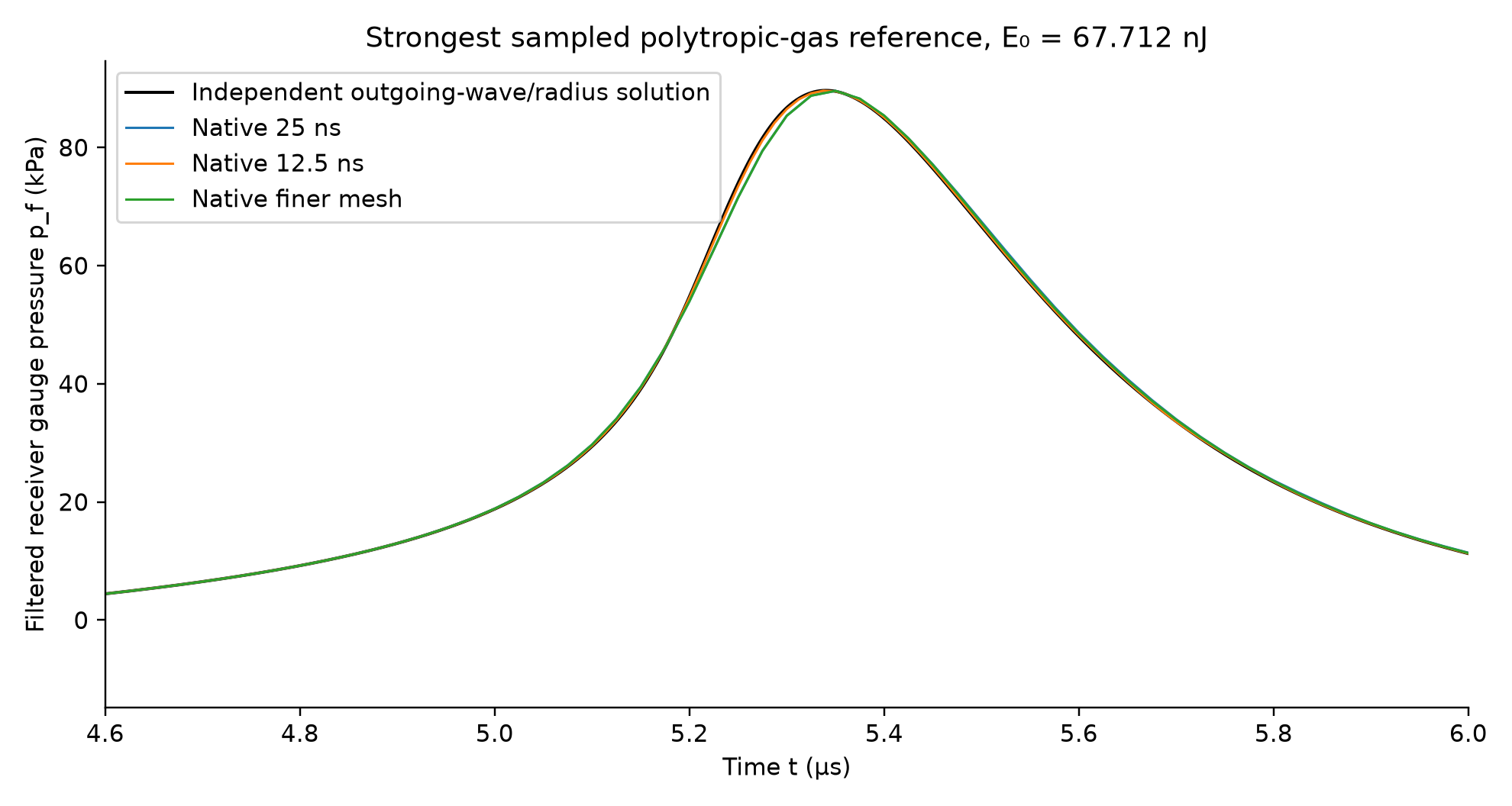
You should see: At gasCase=3 and 25 ns: peak≈89.587 kPa. The separate 12.5 ns control gives ≈89.610 kPa.
应当看到:gasCase=3、25 ns 时峰值约 89.587 kPa;独立 12.5 ns 细化对照约为 89.610 kPa。
If this does not work / 如果这一步不成功
An Undefined variable result often means the wrong dataset/component. Use the full component prefix in this table. The solved data must belong to the study you just computed.
Undefined variable 常见原因是数据集/组件选错。表中使用完整组件前缀,求解数据必须属于刚完成的研究。
| Expression / 表达式 | Display unit / 显示单位 | What it checks / 核对目的 |
|---|---|---|
cG.pdet*DP | kPa | Filtered receiver gauge pressure / 滤波接收表压 |
cG.r1 | 1 | Source radius / 源半径 |
cG.U1 | m/s | Radial velocity / 径向速度 |
(cG.En+cG.Ei+cG.Ep+cG.Ea+E0cG*(cG.ediss+cG.erout)-E0cG)/E0cG | 1 | Energy ledger residual / 能量账残差 |
69 Plot the scalar result against time
绘制标量随时间变化的曲线
Right-click Results → 1D Plot Group. Choose this study’s dataset. Right-click that 1D Plot Group → Global. Replace the default expression with the one below, set its Unit, keep x-Axis Data = Time, and click Plot.
右击 Results → 1D Plot Group(一维绘图组),选择当前研究数据集。右击该绘图组 → Global(全局),将默认表达式替换为下值,设置 Unit,x-Axis Data 保持 Time,然后点击 Plot(绘制)。
| Field / 字段 | Select or enter exactly / 精确选择或输入 |
|---|---|
| Expression | cG.pdet*DP |
| Unit | kPa |
You should see: A curve appears with a labelled time axis and the requested units.
应当看到:出现带时间横轴及所选单位的曲线。
Keep this cG file for M3. For the first learning session, stop after P0 and demonstrate that benchmark before adding this full 3D branch.
保留此 cG 文件用于 M3。第一次学习先完成 P0 并证明基准,再添加完整三维分支。